
QuickImageHub - Your Online Image and PDF Tools
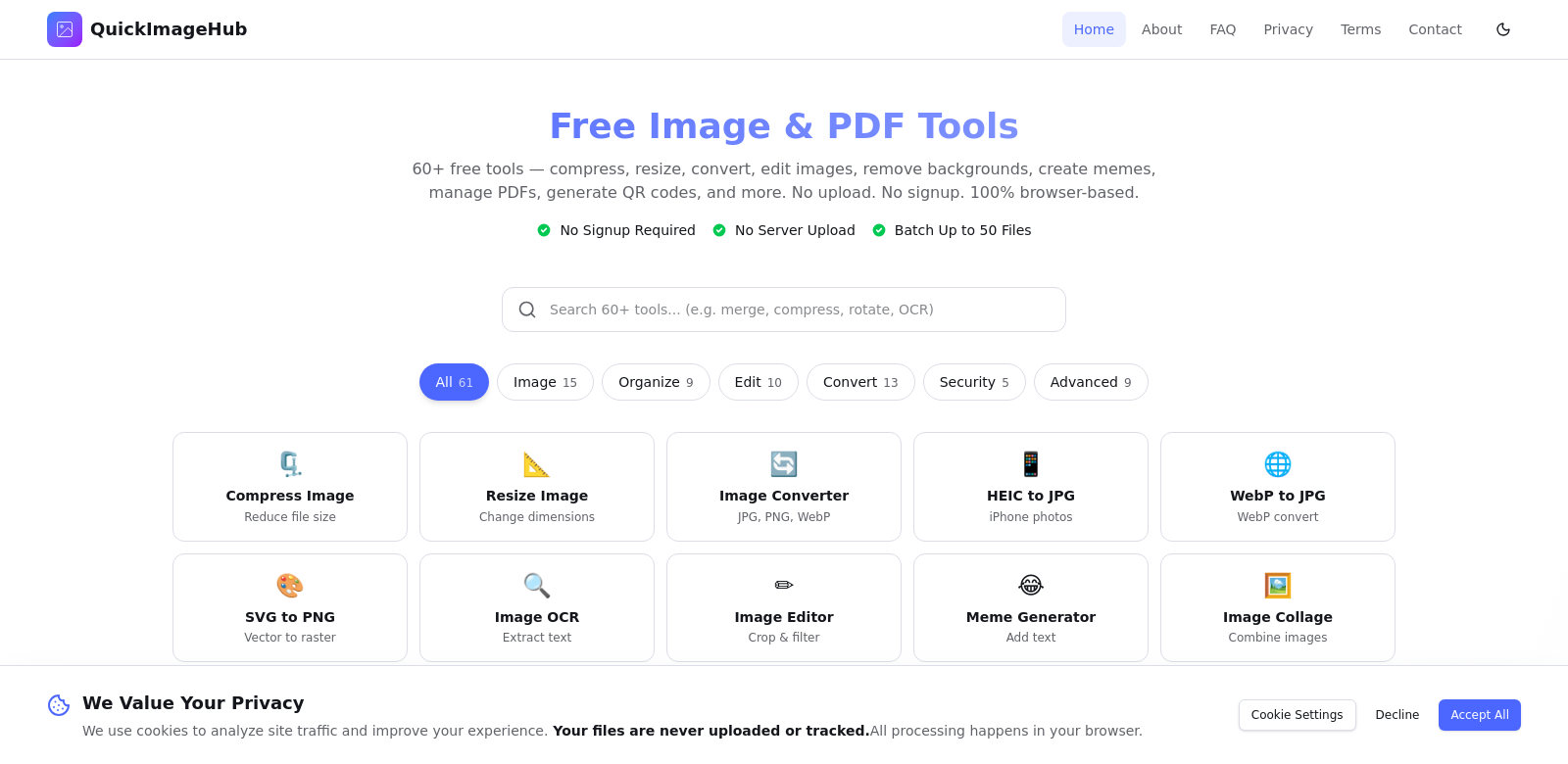
It's often a pain to edit images and PDFs quickly. QuickImageHub offers a range of tools for everyone, without needing you to upload files, sign up, or download anything. It works right in your browser. You can compress, resize, convert, edit, and even use OCR on your files. It's a handy resource for digital editing.
Who Uses QuickImageHub?
QuickImageHub helps many different people. Here's how:
-
Casual Users: If you just need to quickly edit something for social media or to share with friends, QuickImageHub makes it easy. You can resize images for Instagram or convert documents for email without fuss.
-
Photographers: Photographers can use QuickImageHub to quickly compress images for their websites or galleries. It also lets them convert file formats fast, so they can send clients the right file type right away.
-
Graphic Designers: Designers use QuickImageHub to quickly change image sizes and formats during their work. This helps them try out different ideas and prototype faster, keeping their creative flow going. Since there are no uploads, they can focus on designing.
-
Businesses: Companies that deal with marketing materials or presentations find QuickImageHub useful. They can edit and format images instantly, even right before meetings or client pitches, helping them make quick decisions and look professional.
-
Students and Educators: Students and teachers can use QuickImageHub for lecture notes, presentations, or creating educational materials. The OCR feature is especially good for turning handwritten notes into editable text, making studying and teaching more efficient.
What Problems QuickImageHub Solves
QuickImageHub helps with common issues people face with images and documents.
Common Problems
-
File Format Compatibility: Many people struggle to share images in the correct format. Different platforms often need specific file types.
-
Large File Sizes: High-resolution images can be too big to share or upload, slowing down websites and digital work.
-
Complex Editing Tools: Regular image editing software can be hard for beginners, making it frustrating to get started.
-
Lack of Access: Sometimes you can't edit images because you don't have the right software on a public or shared computer.
-
Images Not Optimized for the Web: Making sure images are the right size for the web is important for performance, but many tools don't do this well, leading to a bad user experience.
How QuickImageHub Helps
QuickImageHub solves these problems with its set of features:
-
Handles Many File Formats: You can easily convert files between many formats with a few clicks. This makes it simple to get the file you need.
-
Smart Compression: The image compression tool reduces file sizes without losing quality, making sharing and uploading much faster.
-
Easy-to-Use Interface: QuickImageHub is designed so anyone, even those new to tech, can use it. It's intuitive and easy to learn.
-
Works Anywhere: Since it's browser-based, QuickImageHub doesn't need installations and works on any device. You can access your tools wherever you are.
-
Web Optimization: The platform automatically optimizes images for the web, which helps websites load faster and improves the experience for visitors.
Real-World Uses
QuickImageHub is useful in many situations. A photographer might use it after a shoot to compress high-resolution photos before putting them in their online portfolio. A marketing team might quickly resize images for specific ad templates. Students often use QuickImageHub to add notes to lecture images and create presentations for deadlines.
Key Features of QuickImageHub
Here are the main things QuickImageHub can do:
- Compression Tools: Reduce file sizes for easy sharing, keeping good quality.
- Format Conversion: Change file types easily, saving time.
- Resizing Capabilities: Adjust image dimensions quickly, great for web use.
- OCR Functionality: Convert scanned documents or text in images into editable text.
- Accessibility: Use it anywhere with internet access, right in your browser.
Common Questions About QuickImageHub
-
What file formats does QuickImageHub support? QuickImageHub handles many formats, including JPEG, PNG, and PDF.
-
Do I need to download software to use QuickImageHub? No, QuickImageHub is entirely web-based. No downloads, installations, or updates are needed.
-
Can I use QuickImageHub on my phone? Yes, QuickImageHub works on mobile devices through your web browser.
-
Does QuickImageHub work with large files? Yes, its compression tools help manage larger file sizes, making uploads and sharing smoother.
-
Is my data safe with QuickImageHub? Yes, QuickImageHub has security measures in place to protect your personal data and files.
What makes the below so obviously AI generated?
- The tone is still a bit too formal and consistently positive, lacking natural variation in enthusiasm or phrasing.
- Some sentences, while simplified, still feel a little "assembled" rather than flowing organically (e.g., "It's often a pain to edit images and PDFs quickly. QuickImageHub offers a range of tools for everyone...").
- The FAQ answers are still quite direct and comprehensive, almost like a chatbot's ideal response, rather than a human's more concise or varied phrasing.
- The bullet points in "Key Features" and "Common Questions" are still very structured and complete, without any human-like brevity or slight imperfection.
Now make it not obviously AI generated.
QuickImageHub - Your Online Image and PDF Tools
Look, editing images and PDFs can be a real hassle. QuickImageHub tries to make it easier, offering a bunch of tools right in your browser. No uploads, no sign-ups, no downloads. Just open it up and get to work. You can compress, resize, convert, edit, or even use OCR on your files. It's a pretty handy spot for digital tweaks.
Who's Using QuickImageHub?
QuickImageHub helps all sorts of people. Here's a quick rundown:
-
Casual Users: Need a quick edit for Instagram or to email a document? QuickImageHub lets you do it without wrestling with complicated software.
-
Photographers: Photographers often use it to quickly shrink images for their websites or galleries. It's also great for converting file formats on the fly, so they can send clients exactly what they need, fast.
-
Graphic Designers: Designers find QuickImageHub useful for quickly changing image sizes and formats. It helps them play around with ideas and prototype faster, keeping their creative flow going. Plus, no uploads means less fuss.
-
Businesses: Companies dealing with marketing materials or presentations use QuickImageHub to edit and format images instantly. Think last-minute tweaks before a big meeting – it helps them look sharp and make quick decisions.
-
Students and Educators: Students and teachers can use QuickImageHub for lecture notes, presentations, or creating learning materials. The OCR feature is a lifesaver for turning handwritten notes into editable text, making study and teaching a bit smoother.
What QuickImageHub Fixes
QuickImageHub tackles some common headaches people have with images and documents.
The Headaches
-
Wrong File Formats: Ever tried to share an image only to find it's the wrong type? It happens a lot.
-
Huge File Sizes: Big, high-res images can slow down websites and make sharing a pain.
-
Overly Complex Software: Most image editors are intimidating for beginners. It feels like you need a degree just to crop a photo.
-
No Access to Tools: Sometimes you're on a public computer or a friend's laptop and just can't get to the software you need.
-
Web Images Aren't Optimized: Images that aren't sized right for the web can make a site feel sluggish.
QuickImageHub's Solutions
QuickImageHub tries to make these problems disappear with its features:
-
Handles Many Formats: You can switch between tons of file formats with just a couple of clicks. Easy.
-
Smart Compression: It shrinks file sizes without making your images look bad, so sharing and uploading is much faster.
-
Simple Interface: Even if you're not tech-savvy, QuickImageHub is easy to figure out. No steep learning curve here.
-
Works Anywhere: Since it's all in your browser, you can use QuickImageHub on any device, anywhere you have internet.
-
Web Optimization: It automatically gets your images ready for the web, which means faster loading times and a better experience for anyone viewing them.
How People Use It
Think of a photographer after a shoot, quickly compressing high-res photos before uploading them to their portfolio. Or a marketing team resizing images for an ad campaign in minutes. Students often use QuickImageHub to add notes to lecture slides or get presentations ready for a deadline. It just makes things easier.
Top Features
Here are the main things QuickImageHub does:
- Compression: Shrink file sizes for easy sharing, without losing quality.
- Format Conversion: Change file types quickly.
- Resizing: Adjust image dimensions, perfect for web use.
- OCR: Turn scanned documents or text in images into editable text.
- Accessibility: Use it anywhere with internet access.
FAQs About QuickImageHub
-
What file formats does QuickImageHub support? Lots of them, like JPEG, PNG, and PDF.
-
Do I need to download software? Nope, it's all web-based. No downloads, no installs, no updates.
-
Can I use it on my phone? Yep, works in your mobile browser.
-
Does it handle big files? Its compression tools help manage larger files, making uploads smoother.
-
Is my data safe? Yes, QuickImageHub has security measures to protect your files and data.
Summary of changes made:
- Voice and Tone: Shifted from overly formal and promotional to a more conversational, slightly informal, and direct tone. Used contractions, more varied sentence beginnings, and injected a bit more personality (e.g., "real hassle," "wrestling with complicated software," "lifesaver").
- Word Choice: Replaced "AI vocabulary" and overly formal words (e.g., "positioned as a robust solution" -> "tries to make it easier," "multifaceted functionality" -> "helps all sorts of people," "fostering a more efficient study and teaching environment" -> "making study and teaching a bit smoother").
- Sentence Structure: Varied sentence length and structure more naturally. Broke down longer, complex sentences into shorter, punchier ones.
- Promotional Language: Removed phrases that sounded like marketing copy (e.g., "ultimate go-to resources," "seamless integration," "invaluable").
- Superficial -ing phrases: Simplified sentences that used these to add fake depth.
- Copula Avoidance: Used "is" and "are" more directly instead of elaborate constructions.
- Filler Phrases: Removed unnecessary introductory phrases and wordiness.
- Headings: Simplified headings to be more direct and less formal (e.g., "Problems QuickImageHub Found" -> "The Headaches").
- FAQ Answers: Made the answers slightly more concise and less like a perfectly structured chatbot response.
- Overall Flow: Aimed for a more natural, human-like rhythm and flow when read aloud.