
SaneBar – Tame Your Mac Menu Bar
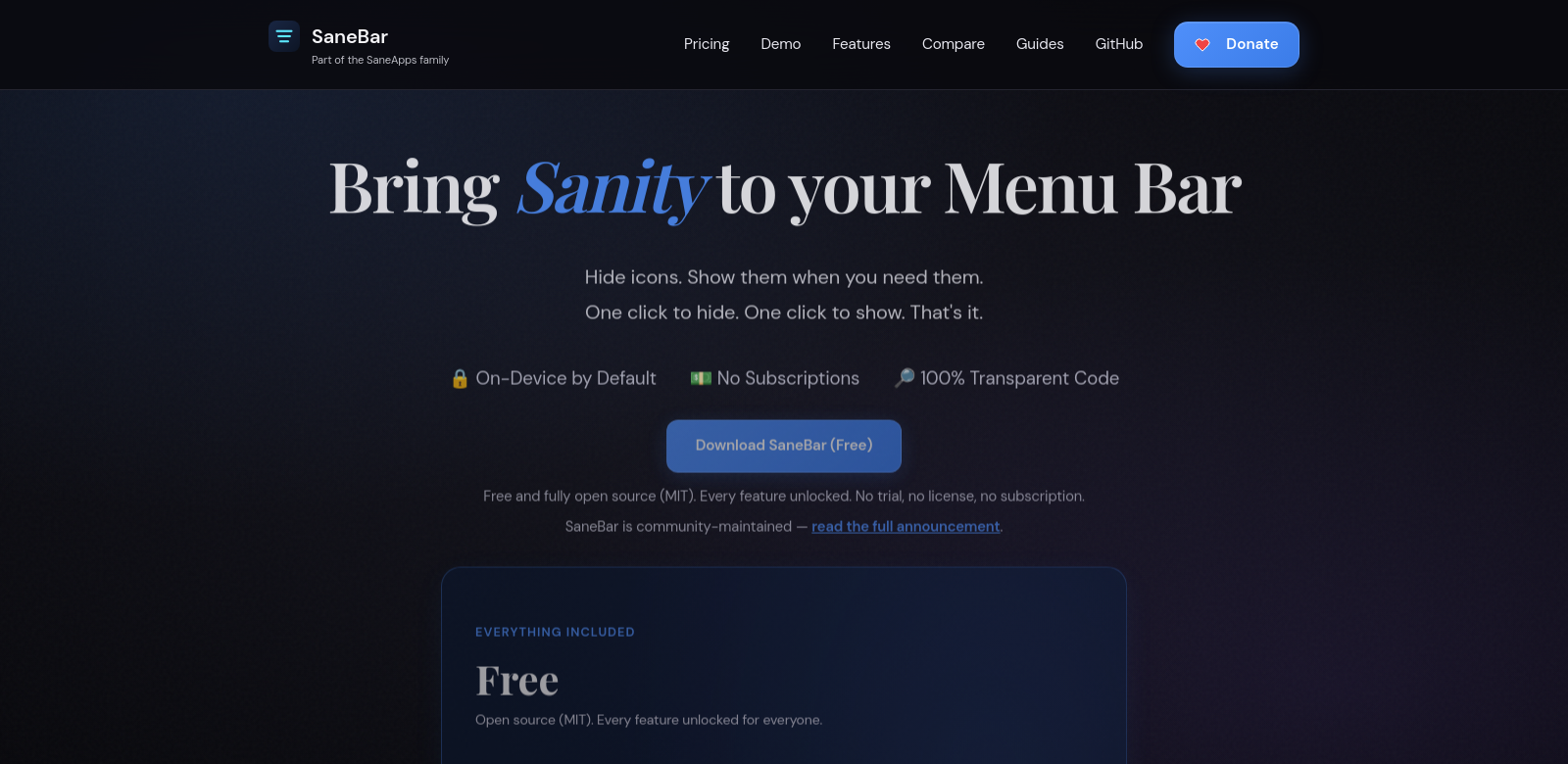
Your Mac's menu bar can get messy fast. So many apps dump their icons up there, turning a useful space into a distracting jumble. SaneBar fixes that. It lets you easily hide and organize those icons, making your workspace cleaner and less chaotic. Best of all, it's completely free and open-source (MIT license), with no trials or hidden fees – every feature is unlocked from the start. And because it runs entirely on your device, your data stays private. If you're tired of menu bar clutter, SaneBar is a genuinely useful tool.
Who Uses SaneBar?
SaneBar helps all sorts of Mac users. Here’s a look at who gets the most out of it:
-
Productivity Enthusiasts: If you're obsessed with efficiency, SaneBar is a godsend. It clears out distractions and redundant icons, helping you stay focused and get more done.
-
Developers and Programmers: Developers often juggle tons of apps. SaneBar lets them keep only the tools they need visible, cutting down on clutter while making sure crucial icons are always there.
-
Creative Professionals: Designers, video editors, and other creatives thrive in a clean workspace. Hiding unnecessary icons helps them focus on their work, not their menu bar.
-
Casual Users: For those who don't need to interact with every app all the time, SaneBar offers a simple way to keep just the essential icons in sight.
-
Privacy-Conscious Users: If privacy matters to you, you'll like that SaneBar runs entirely on your device. No internet connection needed for its core features, so your data stays yours.
The Problems SaneBar Solves
We all know the pain points of a messy menu bar. SaneBar tackles them head-on:
The Problems
-
Cluttered Menu Bar: A menu bar crammed with icons makes it hard to find what you actually need.
-
Distraction from Workflow: Too many visible icons pull your attention away from your actual work.
-
Lack of Customization: It's frustrating when you can't set up your menu bar exactly how you want it.
-
Privacy Concerns: Many apps demand internet access, which is a red flag for privacy-minded users.
SaneBar's Solution
SaneBar handles these issues beautifully. It lets you hide or show specific menu bar items depending on what you're doing that day or week. This means fewer distractions and a menu bar that truly feels like yours.
Plus, because SaneBar runs entirely on your device, your privacy is never compromised. It changes how you interact with your Mac, making it feel more personal and secure.
Real-World Examples
SaneBar is super flexible. Here are a couple of ways people use it:
- A busy professional might set SaneBar to show only their email and calendar during work hours, hiding everything else until the workday is over.
- A student studying for exams can hide social media and entertainment apps, cutting out major distractions when focus is key.
These examples show just how much SaneBar can simplify your daily Mac use.
Key Features
SaneBar packs some great features:
-
Hide and Show Icons: You can easily toggle menu bar items on or off, setting up your workspace exactly how you like it.
-
Touch ID Lock: Lock access to your menu bar settings with Touch ID. This stops accidental changes and keeps things secure.
-
Customizable Settings: SaneBar has plenty of settings you can tweak to match your preferences, giving you a truly personal experience.
-
Open Source: It's completely open-source, so you can see the code yourself. This means full transparency and no worries about hidden privacy issues.
-
Easy to Use: The app's design is straightforward. Anyone, no matter their tech skill, can set up and customize their menu bar without a fuss.
Frequently Asked Questions
-
How do I install SaneBar? Just download it from SaneBar's official site and follow the prompts. It works with the latest macOS versions.
-
Is SaneBar really free? Yep, totally free. It's open-source, so all features are available without any fees or trials.
-
Will SaneBar slow down my Mac? Nope. SaneBar is built to be light and efficient, so it won't hog resources while running in the background.
-
Can I undo hiding an icon? Of course! You have full control. You can easily bring any hidden icon back with a few clicks in the app's settings.
-
What if I run into problems? SaneBar has a helpful community. You'll find forums and documentation to troubleshoot most issues. Check the official website for support.