Screenshot Editor: A Smart Way to Manage Text in Screenshots
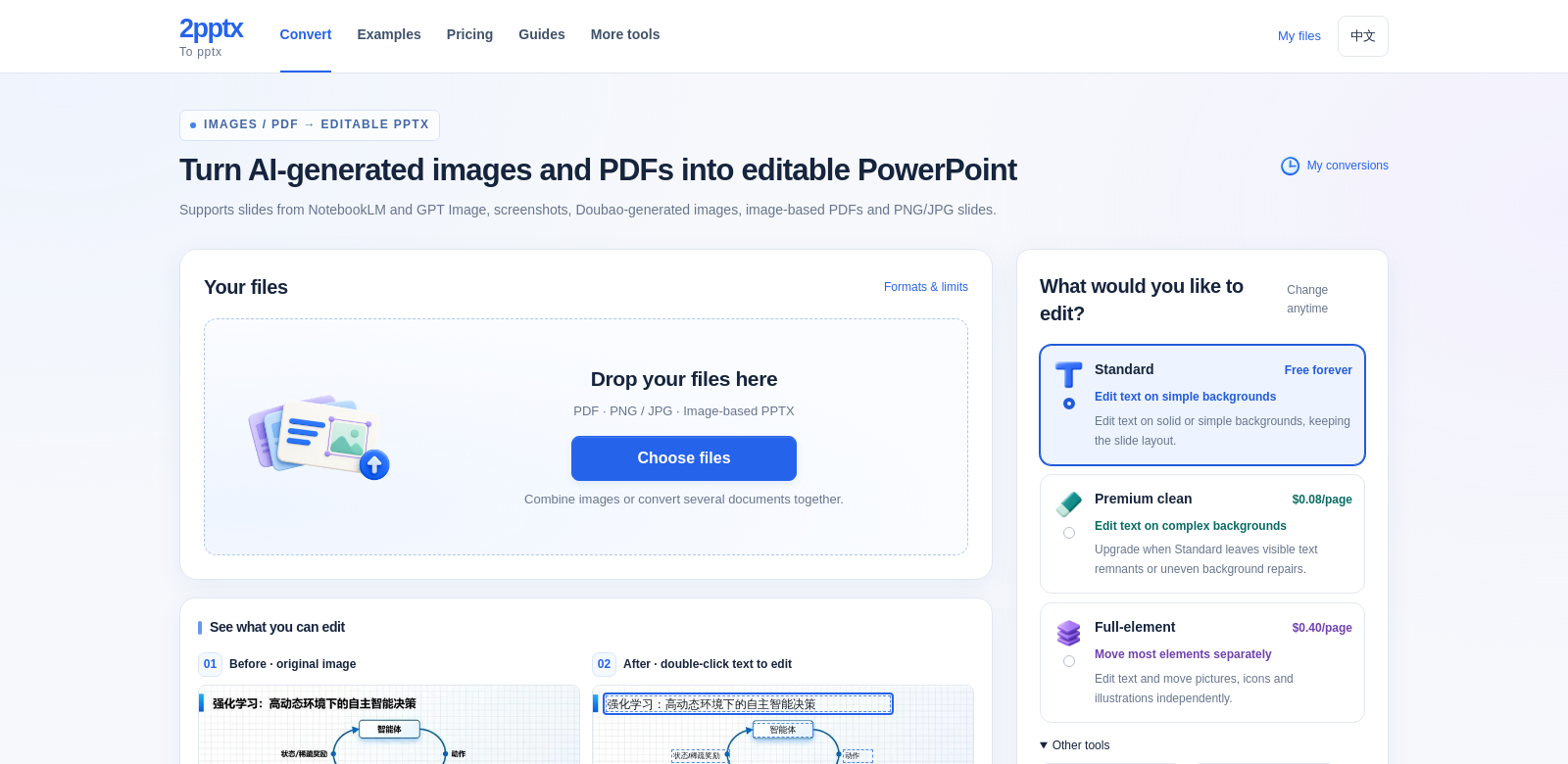
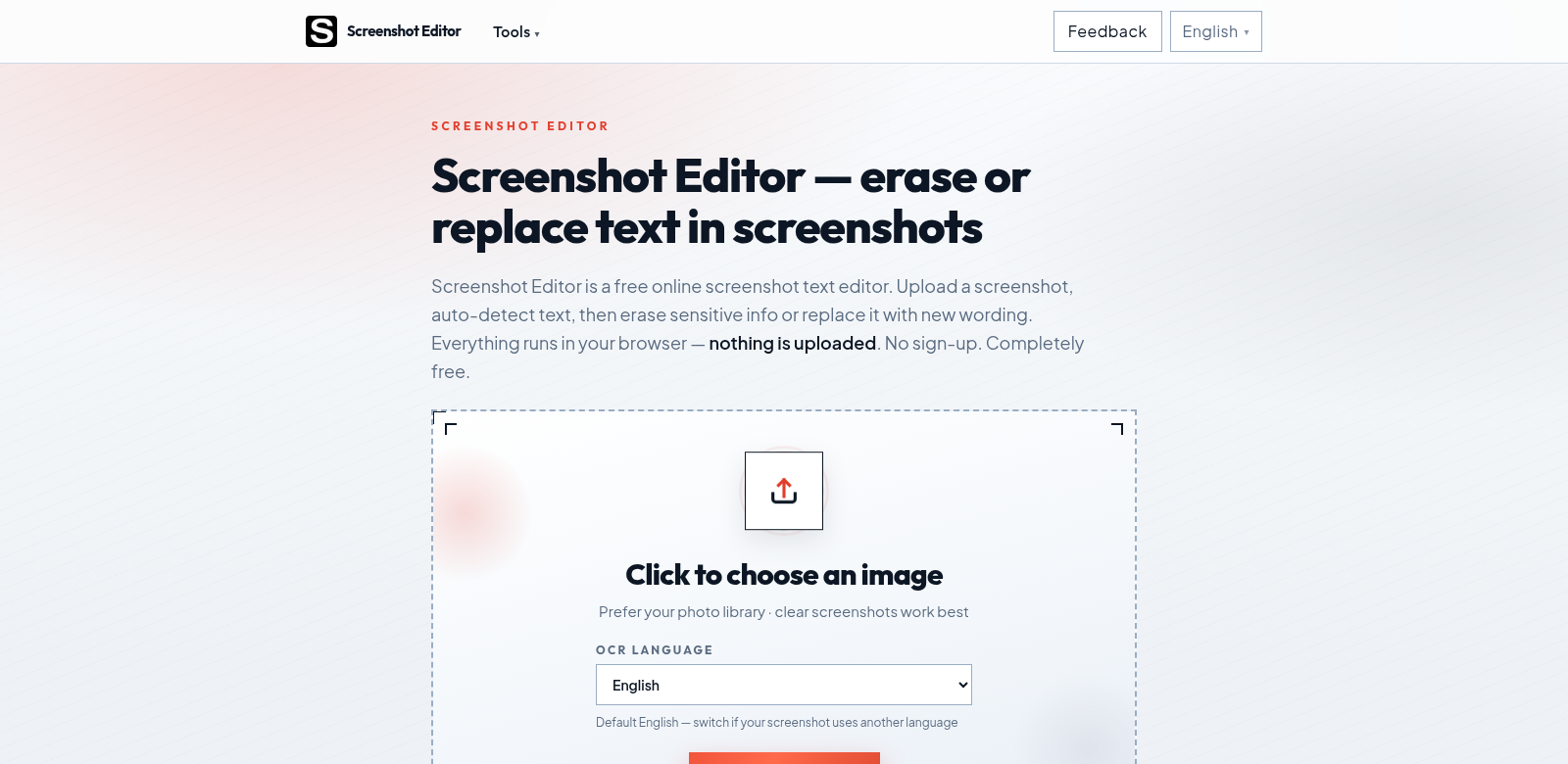
Screenshot Editor is an online tool for anyone who needs to quickly change text in screenshots. It's free, online, and lets you upload screenshots, use local OCR to find text, and then easily erase or replace that text right in your browser. No sign-up, no watermarks, and you can use it from any device with internet. That's why so many people, from pros to casual users, love it. Need to update a presentation, hide sensitive info, or just make an image look better? Screenshot Editor is incredibly useful.
Who Uses Screenshot Editor?
Who uses Screenshot Editor? All sorts of people, and understanding why shows just how versatile it is. It helps many different groups, and each one gets something valuable from its features.
-
Graphic Designers: Graphic designers use Screenshot Editor to clean up images for presentations and proposals. It makes their work easier by letting them quickly edit design mockup screenshots, which means faster feedback and client approvals.
-
Content Creators: Bloggers and social media influencers find it easy to tweak text in images before sharing them. They can update old info with current data, or rebrand screenshots to match their style.
-
Educators: Teachers often use Screenshot Editor to tailor screenshots of educational materials or online resources. Editing these images lets them create personalized teaching materials that fit their students' needs perfectly.
-
Business Professionals: Professionals often need to hide sensitive information in screenshots before sharing them with colleagues or clients. Screenshot Editor lets them easily erase that text, keeping communications private and clear.
-
Students: Students often grab info from online lectures or tutorials. Screenshot Editor lets them edit these resources, focusing on key points and getting rid of irrelevant text to help them study.
Problems and How Screenshot Editor Solves Them
It's tough to edit screenshots well in today's digital world, and people often struggle. Screenshot Editor solves several common frustrations.
Common Problems People Face
-
Limited Editing Capabilities: Traditional image editing software often has steep learning curves and too many features. It's overkill for simple text changes, and can be overwhelming.
-
Inaccessibility of Software: Many users are put off by having to install software or pay for professional editing tools.
-
Privacy Concerns: When editing sensitive information, people need tools that keep their data safe without uploading images to unsecure online servers.
Screenshot Editor's Solution
Screenshot Editor solves these problems with a simple, powerful platform made just for editing text in screenshots. Its easy-to-use interface lets you upload images and automatically detect text with OCR. You can then easily erase or replace the text as needed. Because it runs entirely in your browser, there's no software to install, and you can use it from anywhere. Plus, all operations stay local, which means your sensitive data stays secure. You can edit with peace of mind every time.
Use Case
Imagine a content marketer gets feedback on a promotional email screenshot that needs some tweaks. With Screenshot Editor, they can quickly erase old info from the email screenshot and replace it with new text, all without messing up the design. This quick editing is a huge help during campaign prep, letting them make quick changes and get client approvals without pointless delays.
Top Features of Screenshot Editor
Screenshot Editor has many features that make it stand out from other editing tools. Here are some of the best things about it:
-
Local OCR Detection: Local OCR technology finds text easily, with no extra software needed. This means you can make quick edits right on the image.
-
No Watermarks: Unlike many free editing tools, Screenshot Editor doesn't add watermarks to your edited screenshots. So your images always look professional.
-
User-Friendly Interface: The design is simple, for everyone, no matter their skill level. It makes screenshot editing easy.
-
Secure Editing Process: All edits happen right in your browser. This means your data stays private and isn't stored on outside servers.
-
Cross-Platform Accessibility: Works on any device with a web browser, so it's great whether you're at home, the office, or on the go. It supports everything from desktops to tablets, giving everyone flexibility.
Common Questions About Screenshot Editor
-
How do I get started with Screenshot Editor? It's easy! Just visit the website, upload your screenshot, and use the OCR to find text. You can then erase or replace any text as needed.
-
Is Screenshot Editor free to use? Yep, Screenshot Editor is totally free. No registration or sign-up needed, making it super accessible.
-
Can I use Screenshot Editor on my smartphone? Yes! Screenshot Editor is web-based and works on any device with a browser, including smartphones and tablets.
-
What formats does Screenshot Editor support? You can upload different image formats like PNG, JPG, and BMP, so you can edit what you need.
-
Are there any limitations to the tool? Screenshot Editor is great for text editing, but it's only for changing text in images. It doesn't have full image editing features like filters or effects.